

Day to day
Serial times, the calendar and appointments
A rough time for every number, serials days ahead, the reason for the visit, an hour for reports, the day’s list and a message to everybody on it.
From the chamber’s opening time and the minutes you give each patient, every serial gets a rough time — “number 9, around 7:20 pm”, say. The line still moves by number, as it always has; the time is only so the patient knows when to set off.
Setting it up
- Open the chamber under Doctor & chambers → Chambers. Its days and opening and closing times are already there.
- Under How serials are given, choose Next number in order (as before) or Pick a time.
- Set Minutes per patient — 8 if you leave it empty.
- Put in Serials can be taken this many days ahead; 0 means today only. Days the chamber is closed are skipped by themselves.
- The line underneath shows what that comes to — “Number 1 around 6:00 pm, number 24 around 9:50 pm” — then save.
| Way | How numbers are given | Somebody who walks in |
|---|---|---|
| Next number in order | Each person gets the next number, with its rough time. | The next number, as before. |
| Pick a time | The patient or the desk picks one of the free times; each time is a number. | The first free number from now on — never ahead of somebody already booked. |
Why they are coming
When giving a serial you can choose New visit, Follow-up or Report. Emergency is off — tick Offer “Emergency” as a purpose of visit under Doctor & chambers → Chambers if you want it. An emergency shows in red and is called before everybody else. The desk, the calendar and the list can be filtered by purpose.
Patients coming to show reports
Tick Report patients get their own serial on the chamber and they are numbered apart from the consultation line — R1, R2 at the desk, “Report serial 1” to the patient. If you keep a time for them — 8 to 9 pm, say, 5 minutes a report — then:
- report numbers are timed inside that hour;
- consultation times step over it — what would have been 8 pm becomes 9 pm;
- and nothing in that hour is offered to pick, online or at the desk.
Call the next one calls an emergency first, the report line during its hour, and otherwise the next number in the line.
The calendar
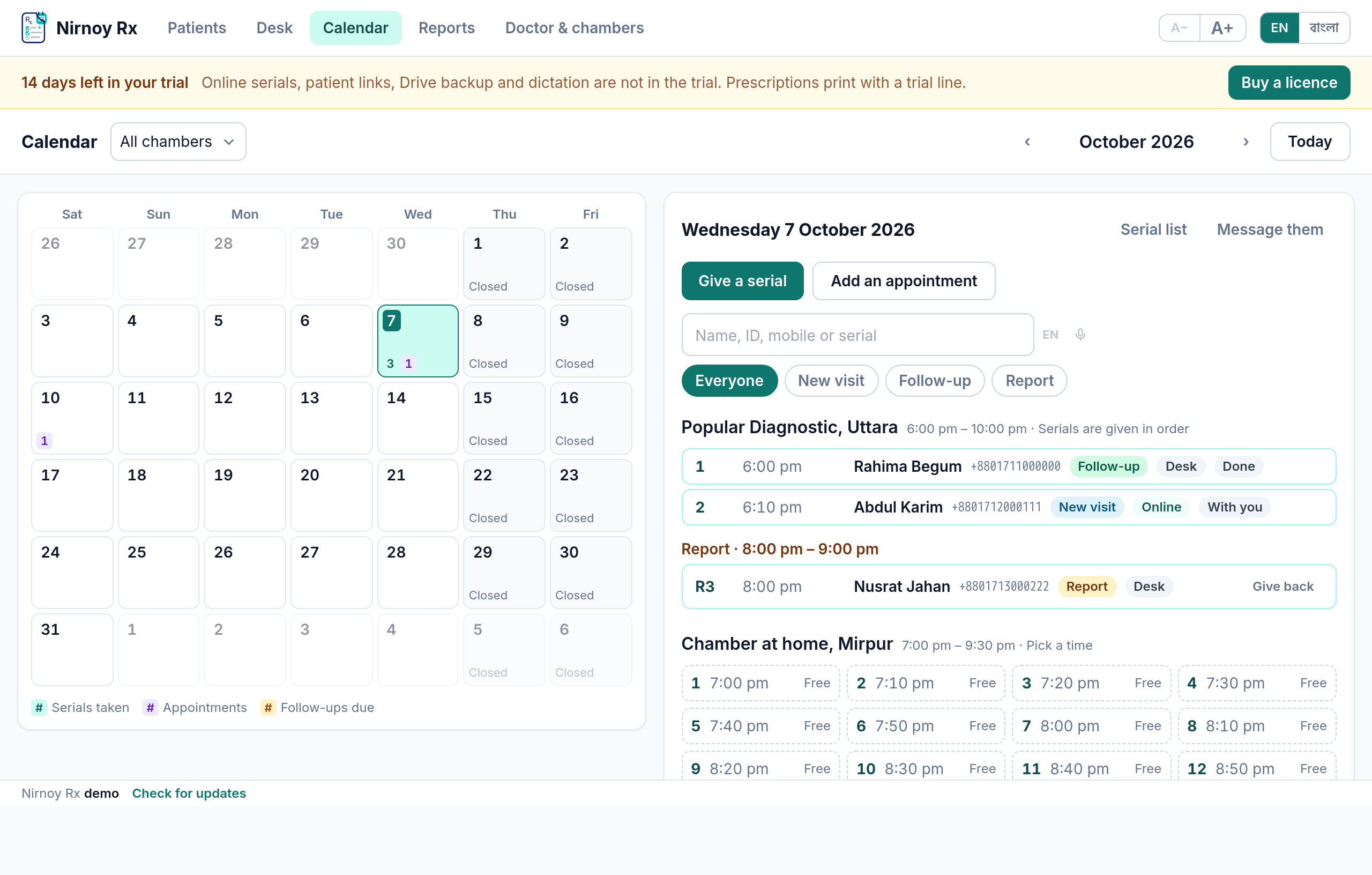
The Calendar tab at the top shows, for each day of the month, how many serials, appointments and follow-ups there are. Press a day and it shows every number with its rough time, the appointments, and the follow-ups written on prescriptions. Give a serial or Add an appointment from there — find the patient by name, mobile or ID; typing a mobile brings up whoever is already on it, and somebody else is added as a new patient. A number given back before its day is free again.
Appointments and checking in
A procedure note’s next visit, with its day and time, goes on the calendar as an appointment; the desk can add one too. No number is held for an appointment. On the day the name shows at the top of the desk under Expected today; when they come, Check in gives them the next number.
The day’s list — printed or downloaded
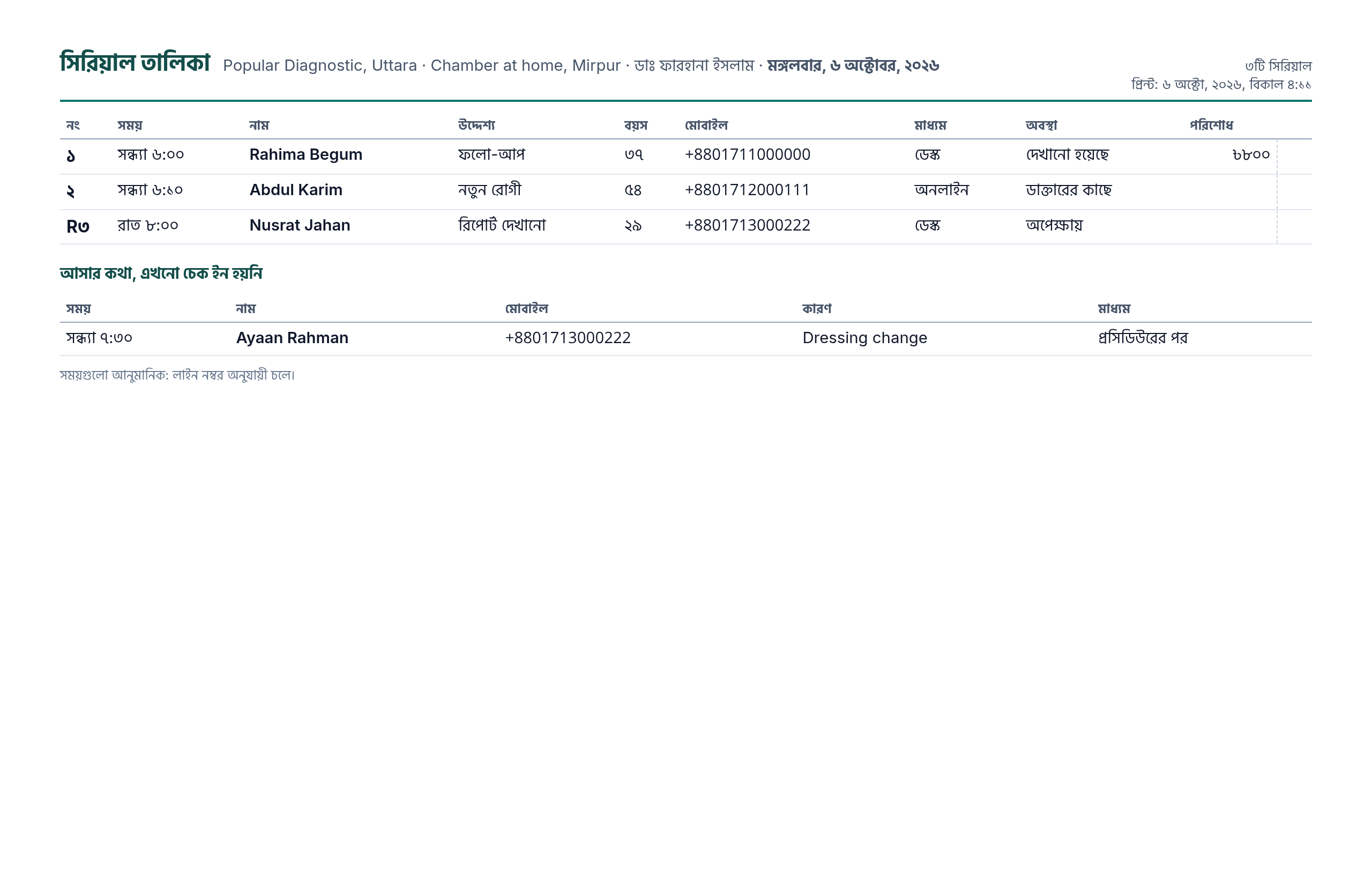
Press Serial list on the desk or the calendar, choose the list’s language, then Print, PDF or Excel (CSV). It has the number, time, name, purpose, age, mobile, how they booked, status and what they paid, and underneath, whoever is expected and not yet checked in. Filter by purpose first and only those print — the report patients alone, say.
Messaging everybody on the list
Message them shows each person’s message first, and what the lot will cost. Somebody with a serial that day gets their number and rough time; somebody with an appointment, the day and time. Nobody already told is told again, and the filter above is honoured.
To send them all in one tap, switch on Send text messages through the message gateway under Doctor & chambers → Chambers — it spends the messages you have bought. With none bought, the assistant’s phone sends them one at a time; the screen says so, with a button to buy.
Finding somebody on the list
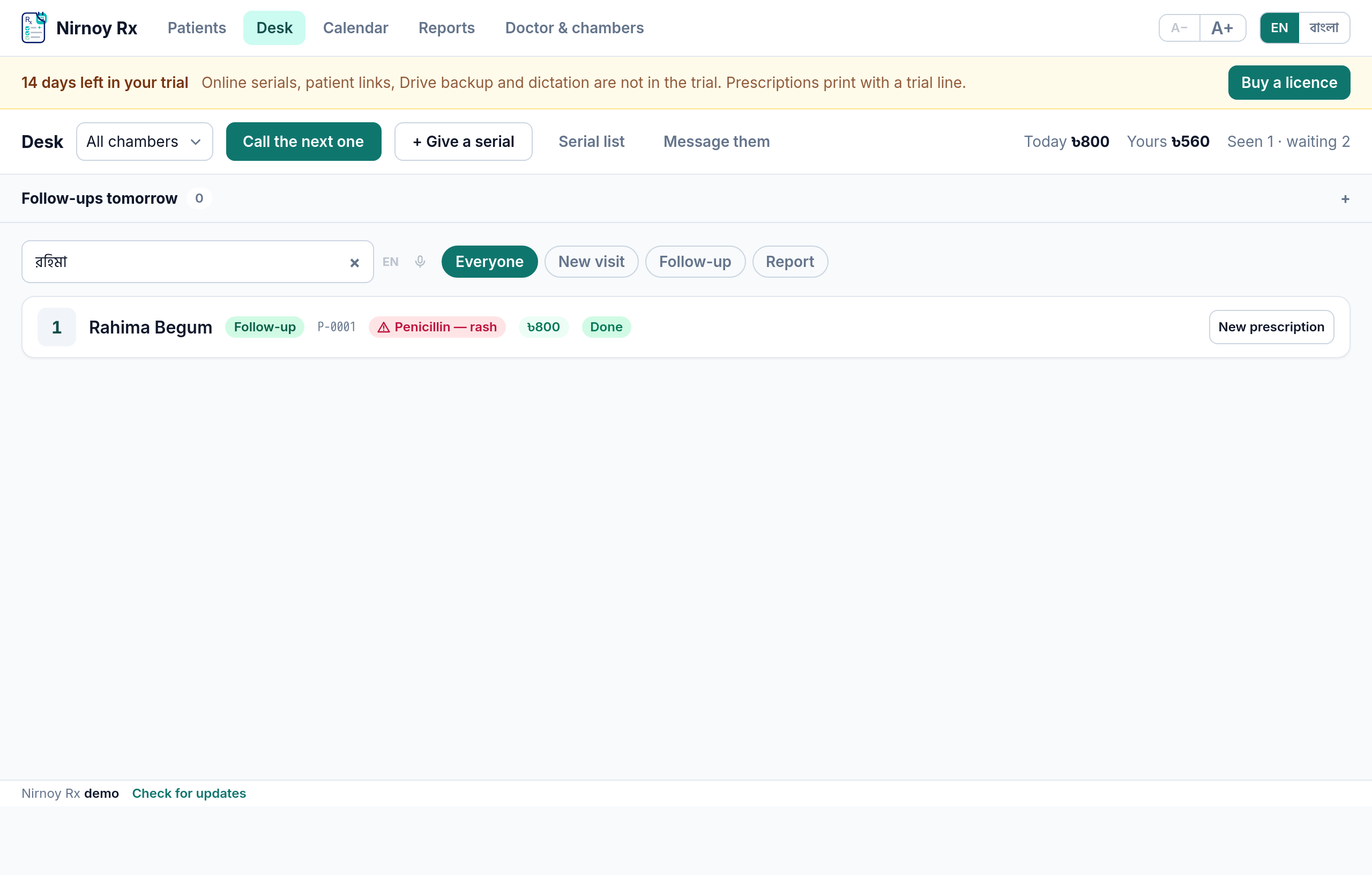
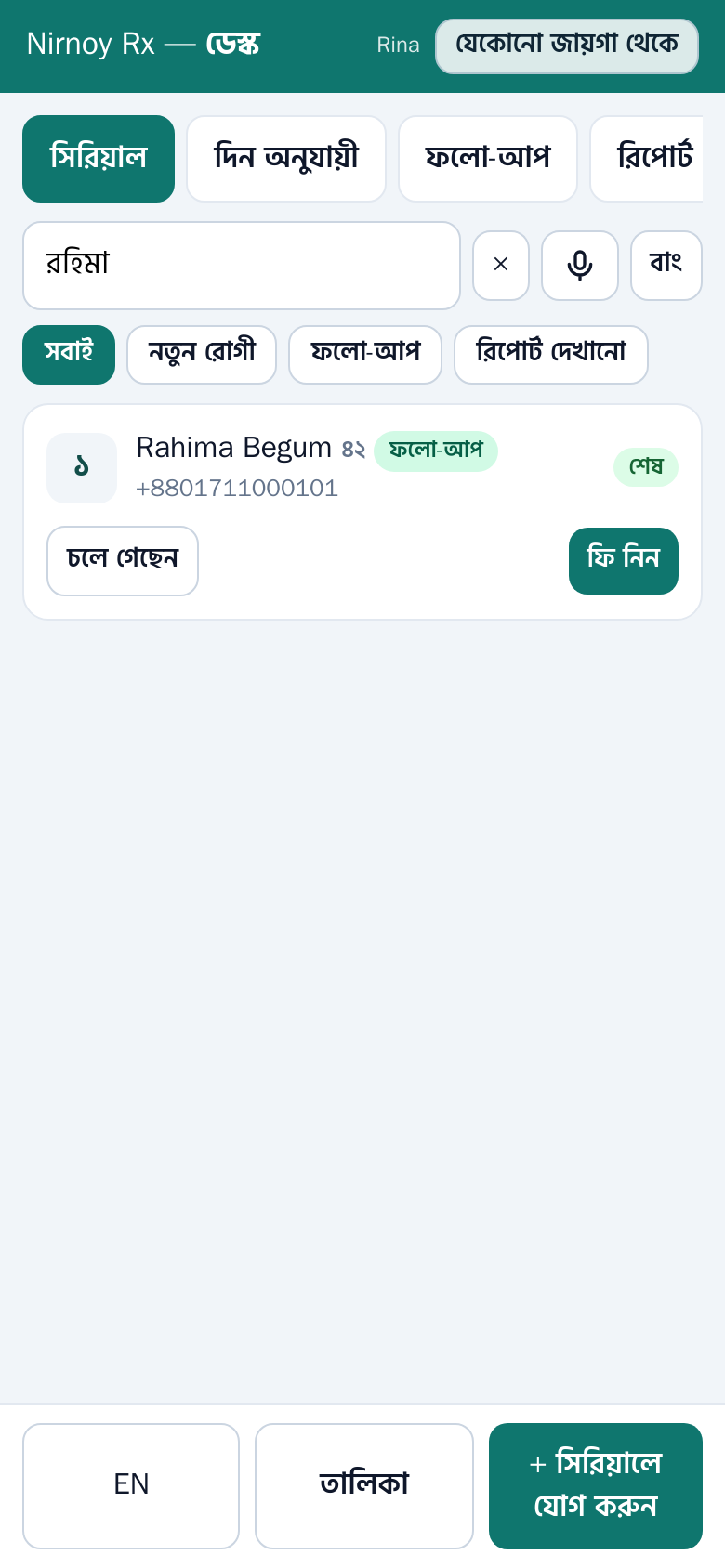
Above the list on the desk, the calendar’s day and the assistant’s phone (the queue and the Days tab) is one search box: type a name, patient ID, mobile or serial number — or say it into the microphone, choosing Bangla or English with the switch beside it. "Rahima" typed in English finds "রহিমা" written in Bangla, and the other way round; an ID or a mobile can be typed in Bangla digits too (০১৭১১, পি-১২). A short number such as 12 means serial 12; R12 for a report. The patient register’s search finds names in either script the same way.
When a patient is called and not there
Next to whoever is shown with the doctor, press Not here: they step out of the line, the next one can be called, and their phone link chimes and says to come to the desk. When they turn up, the desk chooses each time: Back: next (straight after whoever is in now) or Back: at the end. The assistant’s phone has the same buttons.
Patients cancelling or changing their serial
From the link in their message a patient can cancel their serial, or move it to another day and time — up to 2 hours before the session. Set how many hours, or switch it off altogether, under Doctor & chambers → Chambers with Patients may cancel or change their serial themselves. Once that time has passed the link says to call the chamber. Where a deposit has been paid (or a bKash reference sent), the day or time can be changed but the serial cannot be cancelled — the deposit moves with it, and to cancel the patient calls you.
The computer’s clock
Every time here is measured from this computer’s clock. If Windows is not on Bangladesh time (UTC+06:00 Dhaka), or the clock is more than five minutes out, a red band appears at the top of every screen and on the assistant’s phone, with how to fix it: in Windows, Settings → Time & language → Date & time, set the time zone to Dhaka, keep “Set time automatically” on and press “Sync now”.
If this page did not get you there, write to support — tell us where it stopped making sense and we will fix the page too.