

The doctor’s app · Day to day
The Desk and the Assistant’s Phone
Pairing a phone, deciding what it may do, and revoking one that is lost.
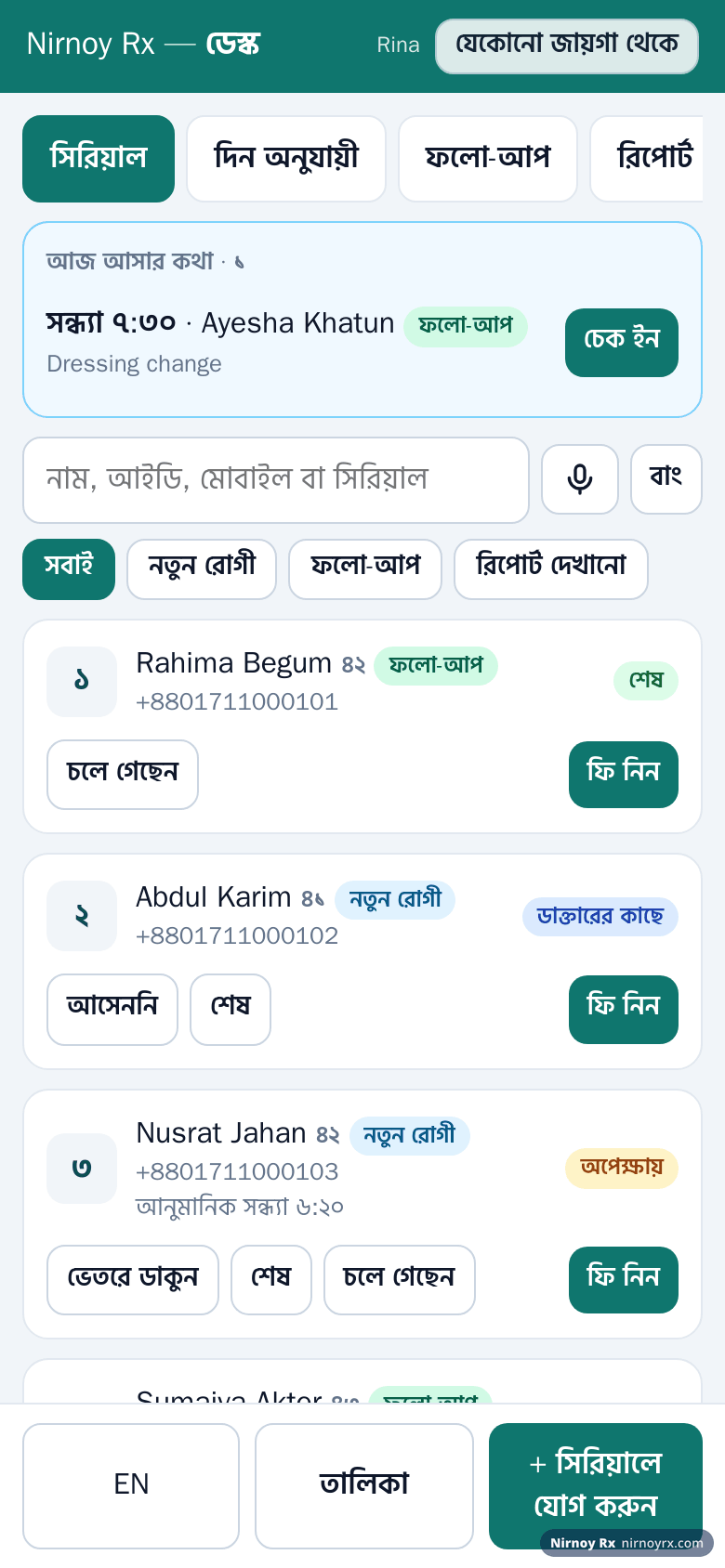
Your assistant can run the desk from their own phone: adding serials, calling patients in, taking fees, scanning lab reports. Nothing to buy. The phone reaches your computer two ways: directly over the chamber’s wifi (no internet needed), and, when the computer is online, through nirnoyrx.com on a sealed road, from any wifi or mobile data. A report or photo sent from the phone appears on your open screen at once.
Signing in with the Assistant’s Passcode
- Under Doctor & chambers → Phones at the desk → Assistants and their passcodes, give the assistant’s name, what they may do and a passcode of 4 to 8 digits, and press Add assistant.
- The assistant opens the desk’s address on their phone, picks their name and types the passcode; no code to read out.
- If the passcode is forgotten, or somebody else has learned it, press Reset passcode: every phone that assistant is on is signed out at once, and they sign in again with the new one. Five wrong passcodes in a row lock that assistant’s sign-in for 15 minutes; a reset opens it at once.
Your Own Phone’s Passcode
Your own paired phone asks for a passcode each time it is opened, and after half an hour unused, so a phone left on a desk does not open by itself. Set it, 4 to 8 digits, under Doctor & chambers → Phones at the desk → Your phone’s passcode; Lock at the top of the phone closes it at once. Five wrong in a row mean a 15-minute wait; changing the passcode locks the phone straight away.
Moving Around on the Phone
A bar runs along the foot of the phone page, as in an app: on an assistant’s phone Queue, Days, Follow-ups, Reports, Today’s takings; on the doctor’s phone Prescription, Reports, Microphone, only what that phone may do. Last comes Menu: the language, Lock on the doctor’s phone, and Use this phone anywhere. With a prescription open the bar steps aside for See the page and Sign and send; ‹ Patients brings it back.
Pairing a Phone
- On your computer, go to Doctor & chambers → Phones at the desk and switch the desk on.
- Press Pair a phone and a six-digit code appears.
- On the assistant’s phone, open the address shown on screen.
- Type the code in. This is also where you say what that phone may do.
| Permission | What that phone can do |
|---|---|
| Serials only | Add serials and see the queue. Cannot reach the money. |
| Serials and fees | The above, plus taking fees and seeing the day’s takings. |
| The whole desk | The above, plus the patient list and bookings. |
Giving a Serial from the Phone
- Press Add to queue at the bottom. Choose why they are coming, which day, and, where times are picked, the time; the next number and its rough time show there.
- Find them by name, mobile or patient ID. For somebody new, type the mobile first; whoever is already on that number comes up, one tap for their file. For another member of the family, type the name and register them as new.
- The phone says “Serial 6 given · around 6:50 pm”, which is what to tell the patient.
The Days tab shows the serials, appointments and follow-ups for any day in the fortnight ahead; serials and appointments can be given from there too, and given back. List opens the day’s list full screen, prints it, downloads it to Excel, and messages everybody on it. Whoever is expected today sits above the queue; Check in when they come.
While the Doctor’s Computer Is Off
In the morning, with the computer off, a phone joined “from anywhere” can still give real serials, from the free numbers the computer left behind when it was last on. The phone says Give serials while the computer is off: put in why they are coming, the day, the mobile and the name. Names and numbers are sealed as they arrive so only your computer can open them, and everybody goes into the line when it is back on.
Which Wifi to Put It On
On the direct wifi road, what passes between the phone and the computer is not encrypted. Anybody else on the same wifi could, if they wanted to, read patient names, numbers, and the lab reports photographed at the counter. It is not an easy thing to do, but it is not a hard one either, for somebody who has the wifi password. (The road through nirnoyrx.com is sealed end to end; see below.)
So the simple answer is: do not run the desk on the wifi the patients use. Put the laptop and the assistant’s phone on a network of their own: a second network on the router (many routers call it “guest”), or the laptop’s own hotspot. That takes the waiting room out of the question entirely, which is most of it.
From Anywhere: Even When the Wi-Fi Does Not Work
With the desk on and this computer on the internet, phones also reach the desk through nirnoyrx.com, on any Wi-Fi or on mobile data. So a phone that slips onto mobile data, a router that gives the computer a new address, Windows Firewall, or the app restarting for an update no longer cuts the phone off: it reconnects by itself. Everything is sealed on the phone (AES-256-GCM) and opened only on your computer; nirnoyrx.com carries it but cannot read it.
- On a phone already working over the Wi-Fi: press Anywhere at the top of the desk page, then Set it up. Add the page that opens to the phone’s home screen.
- On a new phone: under Doctor & chambers → Phones at the desk → From anywhere, choose who is joining, press Show a QR code and scan it with the phone’s camera, or send the link to the phone by WhatsApp. An assistant then signs in with their passcode.
- A QR code or link works once, for ten minutes. While the computer is off or updating the phone says “The doctor’s computer is not connected just now”; keep the page open and it reconnects by itself.
If a Phone Is Lost
Under Doctor & chambers → Phones at the desk, press Switch off beside it; it stops seeing anything immediately. For an assistant who signs in with a passcode, Reset passcode switches off all their phones at once. To bring a switched-off phone back, press Pair again beside it (a new code comes up, with the role it had), or the assistant signs in again with the new passcode.
To take an old or unused phone off the list, press Remove beside it. It stops working at once (on the wifi and through nirnoyrx.com) and no longer shows in the list; what it did stays in the audit.
Patient Photos from a Phone
With patient photos on, your own paired phone shows Take a patient photo on its Reports tab. The assistant’s phone shows it only when you switch on Let the assistant’s phone take photos under Doctor & chambers → Photos. Every photo needs the consent box ticked; it goes straight into the practice file and is not kept on the phone. The details are under “Patient photos”.
Vitals Taken at the Desk
While the patient waits, the assistant can write down the BP, pulse, temperature, weight, height and a child’s head circumference, only the ones you tick under Doctor & chambers → Phones at the desk → Vitals the assistants may record. Nothing is ticked to begin with; leave a vital you take yourself (the pulse, say) unticked. Each ticked vital gets a box behind the Vitals button beside the patient on the assistant’s phone.
They show beside the patient’s name in your Desk list, and are already in the boxes when you open that patient’s prescription. If the prescription is already open, only its empty boxes are filled, never over a number you have written. An impossible reading such as 1200/80 is turned back on the phone.
If this page did not get you there, write to support. Tell us where it stopped making sense and we will fix the page too.