

The doctor’s app · Day to day
Writing and Printing Prescriptions
Finding medicines, doses, templates, and setting the margin for a pre-printed pad.
Open a patient and press New prescription. Complaints, history, drug history, vaccinations, examination, diagnosis and tests down the left; medicines down the right, with advice, the next visit and the plan (to be done) under them. The screen is in the order the paper prints in.
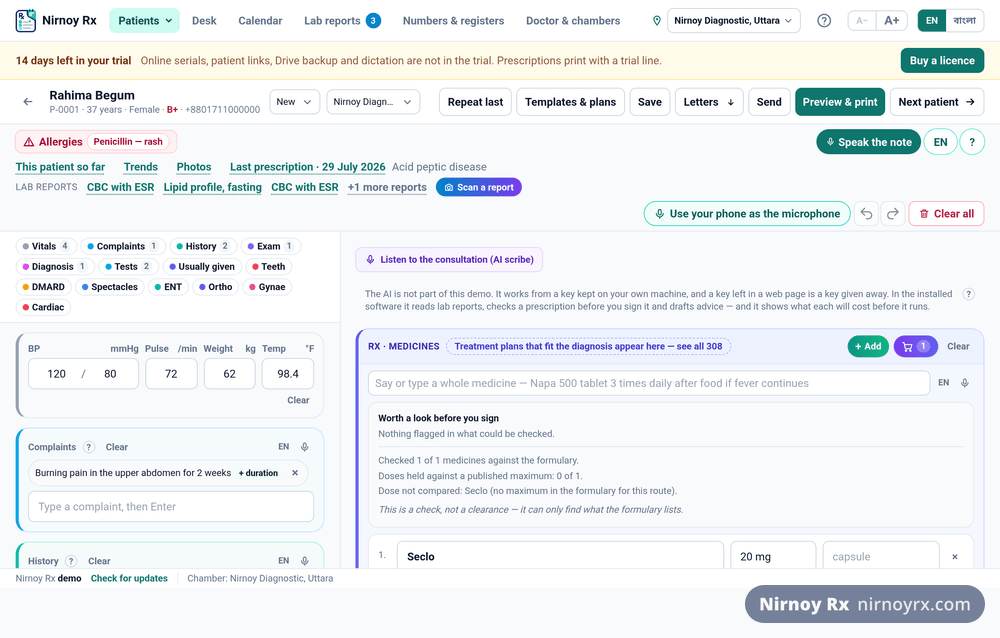
Where the Warnings Show
The safety check (an allergy, an interaction, a dose above the maximum, a lab result, before or after food, a medicine written twice) shows in four places, each with its own job:
- On the medicine line: a small mark under the medicine it is about, red for serious, amber for a note; for a pair, with the other medicine, as in “Interaction · Comet”. The page in the preview carries the same marks; the printed paper never does.
- “Worth a look before you sign”: the full reason and its source (the national formulary, NICE, the pack leaflet). Pressing a mark brings you here.
- In the bar at the top: how many, as in “2 serious · 1 to note”, in sight however far you scroll.
- Before printing or sending: if anything serious is showing, it is listed once and you choose: Go back and look or Print anyway. It never blocks; the decision is yours.
Where a Prescription Opens
The first time a prescription opens, you are asked how you would like to write, with real pictures of both screens side by side: The detailed pad, every part in its own box, with suggestions, sets and the safety checks; or The printed page, writing on the prescription as it will print. Press a picture to open it full screen, and Zoom in to look closely.
- You can switch at any time: Preview & print on the pad, Detailed pad on the page.
- To change it later: Doctor & chambers → Printing → Where a prescription opens, with the same two pictures.
The Left Column’s Parts, in One Row
A slim row sits at the top of the left column: Vitals, Complaints, History, Exam, Diagnosis, Tests, Usually given. Press one to go to that part; the row stays at the top as you scroll. Each chip is in its part’s colour; every part of the left column is now in a box of its own colour, and shows how many lines that part holds. Usually given is dimmed while there is nothing yet for complaints like these.
Adding a Medicine
- Type the first few letters of a brand or a generic and the list appears.
- A few doses appear under each name: the patterns you have written for that medicine first, then what the national formulary states (marked book). Press one and the line is filled with it.
- Press Enter to take the first, or click one.
- Put the dose in as
1+0+1, and the number of days. - It works out the quantity itself; you can change it.
Under every medicine line, beside + Price and same molecule, two more chips are always there: Instructions, press it and the line’s instruction box opens, with its suggestions; and, for a child’s syrup, suspension, solution or drops, Dose by weight, by your own mg/kg rule.
A Medicine’s Dose Window (»)
At the end of every medicine in the list (typed or said) there is a ». Press it and the medicine’s window opens, with four tabs: Doses, Similar medicines, Instructions and Generic.
- Doses: what you usually give first, then the formulary’s and the leaflet’s, the doses common for this form, and a box for your own. Any of them can be made your default. How long (or To be continued) sits above them.
- The guideline’s instructions, on top of Doses: how the medicine is taken shows by itself, the ones that do harm when left out already ticked. Cap. Defrol 20,000/40,000 IU says “with a glass of milk in the morning”; Tab. Salost DR 35 mg says “straight after breakfast with a glass of water” and “do not lie down for 30 minutes”. Untick one and it stays off the line.
- Instructions: tick as many as you like, the guideline’s, the form’s, what you have written under this medicine before, and the common ones by group (carrying on, only if, how, when, take care). Search in either language, or write your own in the box and press Add. Going on the line shows what will go; the tab shows how many.
- Then press Use on a dose back in Doses: the dose and every ticked instruction go on the line together. They sit in the line’s note, to change or delete later.
The Medicine List, New Every Month
The list is the DGDA’s own register, and we read it again every month. The register carries only medicines made here, so imported medicines and vaccines, and brands launched since (Evimar 13, Prevenar 13) are added from the list we collect from pharmacies, marked Not in the DGDA register in the search. A licensed copy is told when a new list is out; one press puts it in, and your own medicines and history are never touched.
In the Say or type a whole medicine box, the matches appear as you type, no need to press Enter. Said aloud, the same list appears.
Writing the Tests
Above the Investigations box on the left there is a search box, just like the one for medicines. A few letters bring the list: "usg" offers the whole abdomen, the hepatobiliary system, the KUB region; "cbc" offers CBC with ESR. Enter puts the test on its own line in the box below. The spellings you have used before sit at the top of the list, marked yours.
Searching and Writing in Either Language
Every list (complaints, tests, diagnoses, advice, allergies) is written in both languages. The row appears in whichever language the app is in, with the other underneath in small type, and what you press is what is written into the box and printed on the paper. The search works in either: type “water” on a Bangla pad and you are offered “বেশি করে পানি পান করুন”.
The Usual Tests, to Tick
Twelve tests sit above the investigations box to be ticked. They start as the usual twelve, and what you write most rises to the top by itself. If your department orders different tests, press Change beside the box: take away the ones you never use, search the list to add your own (up to twelve), put them in order, and press Keep these. From then on every prescription shows exactly your choice. Back to the usual twelve puts it back as it was.
A Discount for the Diagnostic Centre
Under the tests are six buttons: 10%, 15%, 20%, 25%, 30% and Max. Choosing one prints a line on the prescription directly under the tests: "For the diagnostic centre: please allow 20% off these tests." So whoever is at the counter can act on it the moment the patient hands the paper over. Pressing the same button again takes it off.
Removing or Replacing a Guideline Plan
Applying a plan or template puts a chip with its name above the prescription. Its cross takes away only what that plan added; what you wrote yourself stays. When the prescription already has something written, applying a plan asks first: Replace the whole prescription (every section and medicine cleared and the plan put in; the patient, visit and chamber stay) or Replace only the plan’s parts (the diagnosis, investigations, medicines and advice replaced, everything else kept), and then asks once more to be sure. On the pad and in the preview alike. While the prescription is open, all of it can be undone.
Repeating the Last One
Repeat last brings the previous visit’s medicines across exactly, which is what a long-term patient usually needs. Change anything you like afterwards.
Your Own Templates
For a complaint you write the same thing for every day, write it once and save it under Templates with a name. Next time, choosing the name fills the whole thing in.
Going Through Old Prescriptions
Press the Last prescription link above the pad or the preview, or Old prescriptions on the patient’s file. All of them open in one window, newest first. Go through them with the arrows or the left and right keys, choose Summary or Prescription page at the top, and press Esc to close. Choose which opens first in Settings → Printing → How old prescriptions open. The window only reads; the page view uses your present pad layout.
This Patient so Far
Allergies come first, then the last visit, the visits on file and the last medicines. At a glance is counted from the file; the Summary of the history is written by AI, so check it. A button such as Visit 1 opens that prescription.
Chips and Cautions on Plans
A red chip appears beside a plan when one of its medicines does not suit the patient; hover for the medicine and the reason. Otherwise an amber chip says what to check for common conditions, with pregnancy and breastfeeding for a woman over 18. Once a plan is on the pad its notes show “for this patient” and “if the patient has” apart. They are warnings only: no plan is blocked. A chip reads what the notes say, so write long-term conditions in the history. No chip does not mean a medicine is safe.
Treatment Plans, by Field
Beside Treatment plans there is a list, in the pad’s Templates & plans and in the preview’s Sets column. The national guidelines’ plans are divided by field: General medicine, Paediatrics, Gynaecology & obstetrics, Orthopaedics, Cardiology, Chest & TB, Diabetes & thyroid, Liver & stomach, Kidney, Neurology, Skin, ENT, Eye, Mental health, and Emergency & poisoning. A plan is in every field it belongs to: dengue in pregnancy is in both General medicine and Gynaecology.
- Tick fields to show them now; several at once.
- The pin makes a field your default; plans open on it every time, on the pad and the preview alike. A doctor who sees adults and children can pin both General medicine and Paediatrics.
- Plans that fit the diagnosis, your favourite (★) plans and your own templates always show, whatever field is chosen.
- All plans shows everything again.
Advice, One Line or a Whole Set
The advice field has two boxes side by side: the left searches one line at a time, the right searches whole sets. A set that fits what you have written as the diagnosis appears as a chip below: press “Diabetes · 14” and all fourteen go on at once. There are 43 sets and 218 separate lines.
Drug History and the Plan (to Be Done)
Drug history is on the left under the past history: what they are already taking and how, or that they stopped it themselves. It carries forward to the next visit on its own. Plan / to be done is last on the right (admitted, referred, scoped, vaccinated): not what the patient is told but what is to be done. The plan prints under the advice. The history, the drug history and the vaccinations, when written, print on the left under the complaints, and can be added from the preview too.
Usually Given, on the Page
Usually given at the top of the page opens a window: what you gave before for complaints like these, with how often. Press one and it goes on the page with the dose you last used; the window stays open for another. The page’s medicine editor has Medicine, Dose, Dose by weight, Instructions along its top: press one to go there, and Save always in sight at the foot.
Letters and a New Prescription, from the Preview
At the end of the preview’s second row, Letters writes a referral, a certificate or a procedure note, as on the pad. Beside it, + New prescription saves this prescription first, then offers the same patient again, the next patient in the queue, or another patient, from the list. There is no need to go back to the pad.
Changing It on the Preview
On the print preview a cross appears beside every line; pressing it takes that line off the paper. Each block also has a +, and the sections not written yet show on the sheet itself, where they would print, in light dashed boxes: + Advice, + Plan / to be done and so on; on screen only, never on paper. Pressing the Next visit line (or + Next visit when there is none) opens a small box with the date, the quick buttons and when to come back sooner. The tests box has your usual tests to tick, as on the pad, and + Discount under the tests asks the diagnostic centre for a discount; press the discount line to change or remove it. Send at the top sends it to the patient by SMS or WhatsApp. Like printing, sending issues the prescription, and after that it cannot be changed; a small line under the buttons says so. A printed pad’s header and footer space are typed on the sheet’s shaded bands too. The box that opens is the pad’s own: the same suggestion list, the same dose chips.
A Long Prescription on One Page
When there are a lot of medicines the preview measures itself and steps the type down half a point at a time until the page holds it, down to eight points and no further. It says what it settled on, and prints at exactly that size.
Each Medicine on One Line, Its Instructions Under It
On the prescription each medicine’s name, dose, days and quantity sit on one line, and “after food”, “to be continued” or your own note (such as “only if fever comes”) on the line right under it, so more medicines fit on a page. Where the line is short, the dose part moves down whole rather than breaking in the middle. To keep the name on a line of its own and the dose under it, as before: Doctor & chambers → Printing → Medicines on the prescription → Each on its own line.
Printing on Your Own Pad
- Press Preview & print.
- Tick Printed pad at the top.
- Measure the printed part of your pad in millimetres and put that in, usually between 40 and 50.
- Print one and check it; if it is not quite right, change the measurement by a millimetre or two.
Setting up from Your Own Pad
- Press Doctor & chambers → Printing → Set up from my pad (a new copy offers it on its welcome card too).
- Photograph your blank pad, or upload a picture or PDF of it. The price shows before it is read.
- What the AI reads is shown beside the picture: your name and degrees in both languages, the BMDC number, the chamber, the lines at the foot, the logo, the blanks for the patient’s details, the pad’s measurements and its colour. Check, correct, and tick what to keep.
- Use these saves only the ticked groups, over what you already have.
A Pad with Blanks for the Patient’s Details
Many pads print blanks under the letterhead for the patient’s name, age, sex, weight and date. The app then prints each value into its own blank, without a label of ours.
- In Set up from my pad, tick I print on this pad: the blanks the AI found are marked on the picture, and Use these turns them on.
- In Printing, with Printed pad on, each blank has a box on the pad’s picture. Drag a box onto its blank, drag its corner to resize, or move it 1 mm at a time with the arrow keys. Tick the details your pad has a blank for.
- Press Print an alignment check, print it on plain paper, lay it on a blank pad and hold both up to the light. If every box is off the same way, set the millimetres in Move everything.
The Look of the Prescription
Under Doctor & chambers → Printing → Look of the prescription. Nothing changes until you choose.
- Colours: a light blue, green or yellow behind the header, the notes column and the footer; each its own, or all three at once. On a black-and-white printer they print as a light grey.
- The Rx column: on the right (as usual), or on the left with the notes on the right. On the paper, in the preview and on the pad alike.
- Width of the notes column: from 25% to 45%, with a slider.
- Picture behind the medicines: from 19 realistic pictures (heart, kidney, brain, lungs, knee, eye, ear, child and more): picked from your speciality, chosen by you, or your own uploaded picture. Light or medium; the medicines always read clearly over it.
The Centre’s or Hospital’s Logo
- In Printing, Logo on the prescription has a box for each chamber.
- Drag the logo file onto the box, or press Choose a logo. Empty margins round it are cut away, so it fills its space.
- Choose Where it prints: in the header between the two sides, in the footer, in both, wherever the chamber is, or not printed.
What You Usually Give
As you type the complaint, a short list appears underneath: what you yourself have given for a complaint like this, with the count beside each one. Tapping one puts it on the pad with the dose you last used. It is a count of your own prescriptions, not advice from anywhere else.
Other Brands of the Same Molecule
On each medicine line, same molecule shows the other brands of that generic at that strength. A price appears only where your own list records one; no price is ever guessed.
The QR Code for the Patient
A QR code is printed at the foot of the sheet. The patient points a phone camera at it and sees the medicines large, with a picture for each time of day and the date the course runs to. The prescription is inside the code; nothing is stored on any server, so it works from a chamber that has never been online. Untick Patient code in the preview if you would rather not have it.
The code is signed with your practice’s own key. When a patient scans it the page says Checked, meaning the prescription really came from your Nirnoy Rx and not one character has changed. The checking happens on the patient’s own phone; the prescription is not sent anywhere.
Sending It to the Patient
A Send button sits on the pad, on the print preview and in the lists of prescriptions. What it sends is the same address the QR code on the paper carries, so whether the patient scans the code or taps the message, the same page opens. Like printing, sending issues the prescription, and after that it cannot be changed; the menu says so before anything goes. A list offers Send only for prescriptions already issued.
- Send on WhatsApp opens WhatsApp at that patient’s number with the message already written. It goes from your WhatsApp to theirs; no server of ours is in between.
- Send as a text goes through the gateway when you have message parts, with the price on the button before you press it (one part, ৳0.75). Without them it opens this computer’s own texting app.
- Copy the link if you would rather send it yourself.
Short Forms: HTN, DM, URTI
In complaints, history, drug history, examination, diagnosis and the plan (to be done), typing a short form finds the line: htn brings Hypertension, sob brings Shortness of breath. The short form is shown in small type beside each suggestion, your own earlier lines included.
How a chosen line is written is set under Doctor & chambers → Printing → Short forms:
- HTN only: the short form alone, where it reads only one way. This is how it starts. It applies to English lines only; a Bangla line is always written in full.
- Hypertension (HTN): the full name with the short form in brackets.
- Hypertension only: the full name alone.
On paper the diagnosis is written on one line, separated by commas, under the same rule: “HTN, T2DM, Viral fever”, say.
What a Medicine Costs: For You Alone
Choosing a medicine the patient can afford means knowing its price, and a price on the prescription does not look right. So the price lives on the pad only, beside the medicine line: “৳8.4 for the course”, say. It is never printed and never sent to the patient.
- Press + Price beside the medicine line, or edit the medicine under Doctor & chambers → Medicines.
- Put in the price of a pack and how many units are in it (1 for a bottle of syrup).
- From then on, whenever you write it, the cost of the course (from the dose and the days) shows beside it.
Where you have not put in a price, the pad shows the one other Nirnoy Rx practices recorded, with a small count of how many. Your own price always comes first. If one looks wrong, press the ✎ beside it and correct it.
When another brand of the same molecule, strength and form costs less, a yellow hint appears beside the price: “↓ Aceto ৳0.9 each, ৳0.6 less”, say. Press it and that brand takes the line’s place; the dose stays as it was.
Checked Against the Lab Reports
As you write, the safety panel also reads the patient’s lab reports from the last six months: eGFR (or, where there is none, worked out from creatinine by CKD-EPI 2021 for an adult whose sex is on the file), potassium and ALT. Metformin below an eGFR of 30, spironolactone or a -pril or -sartan with a high potassium, an NSAID with a low eGFR, it says so there, with the date of the report it read.
Once a test has been done more than once, or the blood pressure and weight have been written at a few visits, a Trends link appears at the top of the pad: a small chart of each, with readings outside their range in red.
Inhalers, Insulin, Injections, Sprays, Drops: Each Written Its Own Way
The line changes with the kind of medicine, so that what prints is what the patient can follow. The dose box takes the right unit, a box for where it goes appears where that has to be said, and “how often” can be daily, alternate days, weekly, monthly, yearly, as needed, or one dose now. Choose anything but daily and the morning–noon–night boxes go away, so a weekly tablet never ends up with 1+0+0 on it.
| Form | How the dose is written | The extra box |
|---|---|---|
| Inhaler | Puffs: “2 puffs twice a day” | — |
| Insulin | Units (U): morning, noon and night separately | — |
| Injection | Ampoules, ml or vials; once a day to begin with | Intramuscular (IM), intravenous (IV), subcutaneous (SC) |
| Spray | Sprays | Each nostril, under the tongue, the throat, the affected area |
| Drops | Drops | Which eye, which ear, or each nostril |
| Nebuliser, rotacap | Respules or capsules | — |
| Vaccine | A dose, one now to begin with | IM, SC or by mouth |
| Syrup, suspension, solution | Spoons or ml | — |
| Cream, ointment, gel | How many times a day to apply | — |
Where the pack leaflet for a medicine is on file (a nasal spray, say), its doses show under the line by age band, in sprays or puffs rather than micrograms, with the patient’s own band marked. Press one and the line is filled with it, to change as you like.
The Note Under Each Line: The Instructions Come up by Themselves
Under every medicine line is a note box, with + Phrases beside it. Press it and three kinds of instruction are offered; one press adds any of them to the note:
- What the leaflet says: how much water to dissolve the ORS in, to sit down before a nitrate spray. These come first.
- What the form always says: rinse your mouth after an inhaler, use a spacer; change the insulin site each time, keep it in the fridge, keep sugar within reach; an injection given by a trained person; do not let the dropper touch the eye. Only the ones for that line’s form are shown.
- What you are saying this time: to continue, if the fever stays, if the pain remains, with milk, come back when it is finished, in groups.
Typing in the note box offers the phrases that match, in either language. The same phrase is never added twice, and a phrase goes after what is already written rather than over it. With “Instructions in Bangla” on, the note is written in Bangla.
On the Patient’s Phone: Bangla First, English If They Want It, and a Reminder
Scanning the QR code, or opening the link sent with Send, always opens the medicines in Bangla, whatever language the sheet was printed in. Each medicine is large, with a picture for morning, midday, afternoon and night, before or after food, and for how many days or until which date; the signature check is at the top and the day to come back at the foot.
- To read it in English, press Read in English beside the title. The same prescription opens in English; বাংলায় পড়ুন goes back.
- For a reminder, the Remind me section has two ways. Put it in the calendar downloads a small file; opening it puts the daily times into the phone’s calendar, and they stop by themselves when the course ends.
- Show the alarm times lists each time, to set in the phone’s alarm app as “Daily”, and to turn off when the course is finished.
- On an Android phone Add to Google Calendar comes first: press each time’s button once, Google Calendar opens with everything filled in, and press Save. Every alert names its medicines; a medicine to be continued is reminded until the next visit, or for a month where none was given.
- If a date to come back was given, that goes into the calendar too.
Without the internet: once any prescription has opened with the internet, the page stays on the phone; after that a scan opens the medicines, tests and reminders without it. Checking the signature, the advice and the exercise videos need the internet.
A big prescription: when it will not fit one clean code and the chamber has the internet, the paper carries a small code instead, with every medicine, note, test and the advice inside, locked, kept a year. Without the internet, the prescription is packed into one clean code: every medicine, dose and time always stays; where there is not room, the tests go first (the lab types them from the paper), then the chamber’s name and number, the signature, and last the extra notes under the medicines. Where there are exercise videos their key stays, and the advice and exercises are sent by themselves once the internet is back. What every inhaler, injection or insulin is told always shows on the patient’s phone. A code is never made denser.
Your Phone as the Microphone
With no microphone on the computer, or when speaking into the phone is easier, your own paired phone can be the microphone. The phone listens with its own speech service and only the words go to the computer (never the sound), so there is no lag.
- Pair the phone once: in Doctor & chambers, under Phones at the desk, as the Doctor’s phone.
- On the phone, open Nirnoy Rx, enter the passcode and choose Microphone. While that page is open, the pad shows Phone microphone at the top.
- Press the microphone beside any box on the computer; the phone buzzes once and shows where the words will go, as in “For: Complaints”.
- Tap the big button on the phone and speak. The words show on both screens as you speak; stop, and they go into the box, with the same suggestions and choices as the computer’s own microphone.
- On the chamber’s Wi-Fi the phone talks to the computer directly; elsewhere, through Nirnoy Rx’s locked road.
- Only the doctor’s own phone, opened with its passcode, can speak into the pad; an assistant’s phone cannot.
- To use the phone even when the computer has a microphone: the sign at the top of the pad, Always use my phone as the microphone.
- If nothing comes from the phone within two minutes, the box says so and stops waiting. Chrome on Android hears Bangla best.
A Few More Things on the Pad
- Under the patient’s name, on one line: the patient number, age, sex, blood group (in red) and mobile; the same on the patient’s file. The blood group is on the screen and is not printed on the prescription.
- Beside the date box under Next visit is a row of eight quick buttons: 7 days, 2 weeks, 3 weeks, 1 month, 2 months, 3 months, 6 months, 1 year. They count from the day of the visit (6 months and 1 year land on the same date of the month); pressing the chosen one again clears the date.
- The Letters menu at the top holds Referral letter and Medical certificate. Each saves what is on the pad first, then opens.
- The LMP box is not always there; see “A child’s growth and vaccines, and pregnancy”.
- With patient photos switched on, a Photos link appears in the strip at the top; see “Patient photos”.
- Dictating several complaints in one go makes a line for each: “fever for three days and cough” is two lines. In the tests box, As said comes first.
- When Bangla is misheard (“ধরাপেটে যক থাকলে” for “ভরা পেটে জ্বর থাকলে”), Did you mean? appears by the microphone: press to correct, and nothing changes unless you do. Numbers (doses, strengths) are never changed. A medicine name the register does not have shows the nearest names by sound, for you to choose yourself; “Take the likely ones” never takes them.
- The AI button by a Bangla microphone offers Clearer Bangla dictation: on, Bangla is recorded with the background noise taken out and written down by a stronger AI model, from your AI credits (the price is shown there). English stays free. The same switch is under the microphone tester in Medicines & AI. No software can fully shut out other people talking nearby; a headset or collar microphone close to your mouth does.
- The preview’s Sets opens over the paper on a phone-sized screen, with its own Close. On an issued prescription the button is greyed; pressing it says why.
- Guided tours (the ? button at the top): when a tour ends it says so, and the next tour is one press away.
If this page did not get you there, write to support. Tell us where it stopped making sense and we will fix the page too.